
Choose which calendars block your time
Last updated: October 20, 2026
On each booking link, the Calendars to check for conflicts card lists every connected calendar. A busy event on any checked calendar makes that time unavailable to guests, and different links can check different calendars.
Pick the calendars
- Open Booking Links and open the link you want to change.
- Find Calendars to check for conflicts. Calendars are grouped by account, across Google and Microsoft.
- Tick every calendar that should block your time and untick the rest.
- Click Save changes.
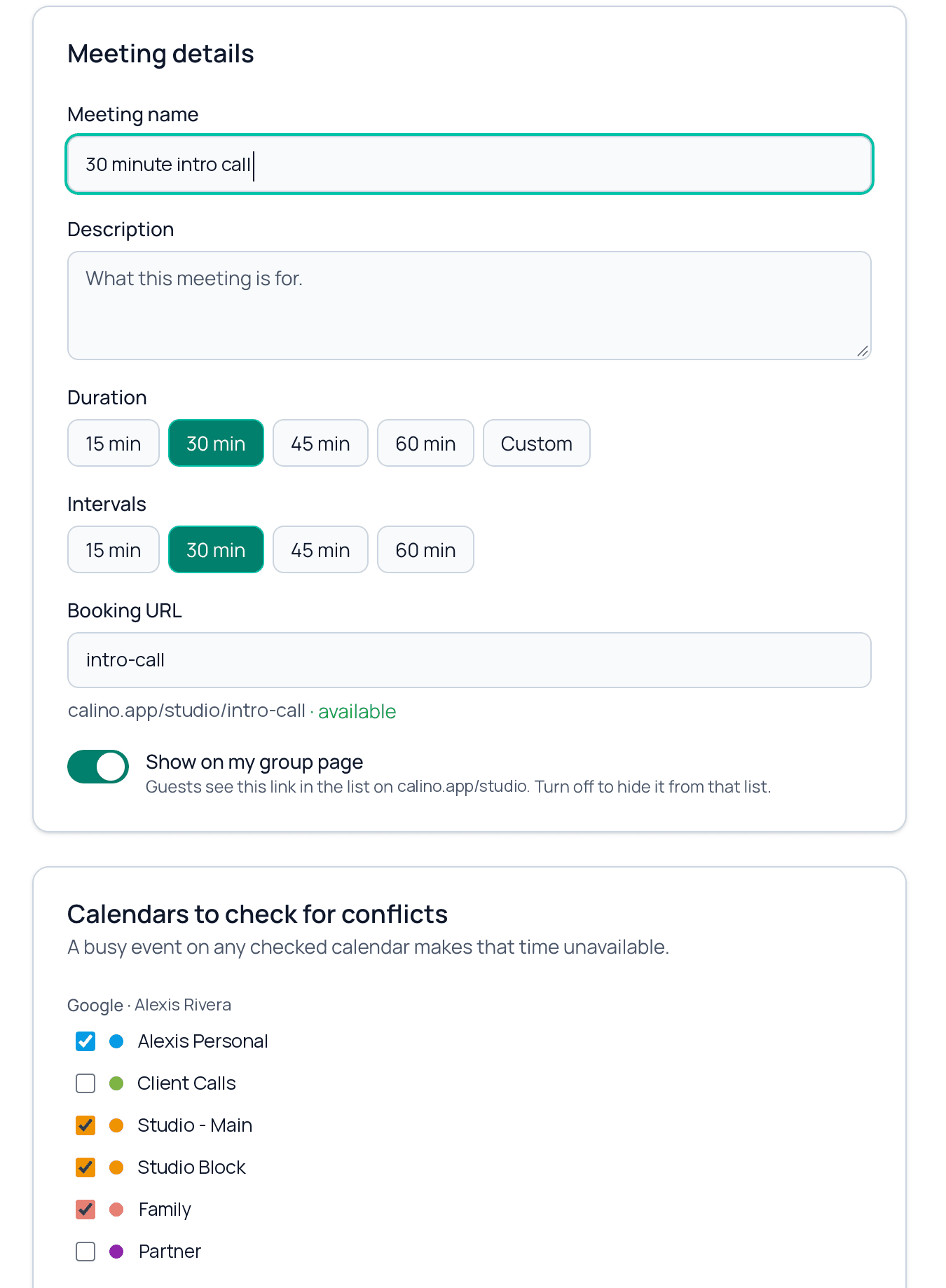
Only busy and free times are used. Event titles, descriptions and attendees are never shown to guests.
Set your available hours
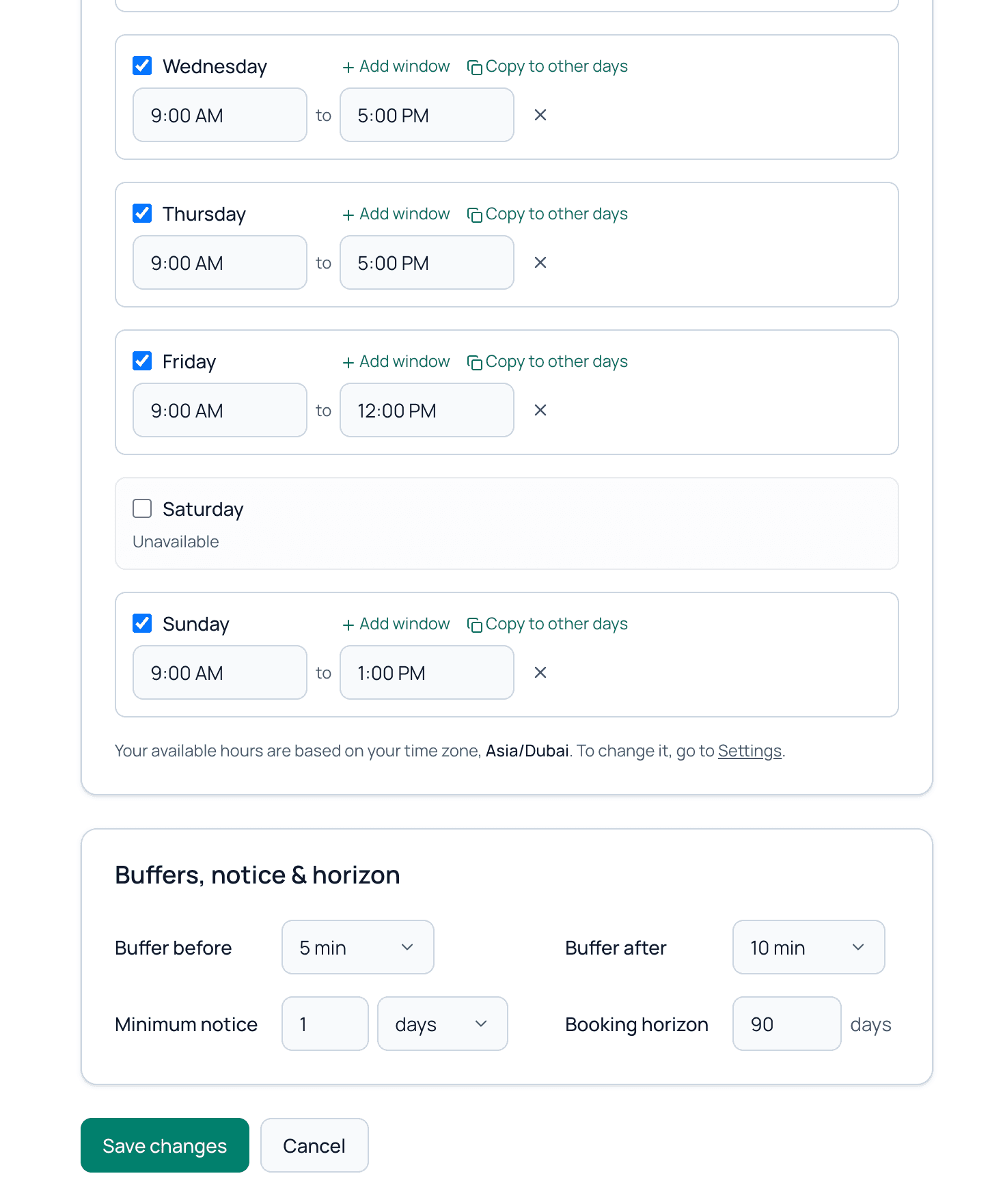
Available between sets the days and hours for this link only, so a client call and an interview can use different hours. Times are shown in your time zone, which you set in Settings.
Buffers, minimum notice and horizon
- Buffer before and Buffer after keep free time around each meeting.
- Minimum notice is how far ahead people must book, in minutes, hours or days.
- Booking horizon is how far into the future people can book.
Reminder emails to your guests
On the Standard plan, the Reminders card at the bottom of a booking link can email your guests before the meeting. Tick Reminder 1, Reminder 2 or both, and choose how long before the meeting each one goes out, from 15 minutes to 7 days. When you tick one, it starts at 24 hours (the first) or 1 hour (the second) before.
- Reminders apply to bookings made after you save. Bookings that already exist keep the reminders they were given.
- If a booking is made too close to the meeting for a reminder time, that reminder is skipped.
- A reminder arrives within about 5 minutes after its time, never before.
- If a guest reschedules, the reminders move with the meeting. If the booking is cancelled, they stop.
- If your plan changes to Free, your settings are kept but reminders stop until you upgrade again.
Warnings you may see
- Needs attention next to a calendar means it stopped syncing but is still the destination for the link. Go to Integrations to reconnect it, or choose a different calendar.
- Not conflict-checked means the destination calendar is not one of the calendars checked for conflicts, so double-booking is not protected on it. Tick it in the list or choose another destination.
Related guides
Still need help?
Send us a message and we will get back to you.
Contact us